Equation Builder
teachteach.tools/equationbuilder
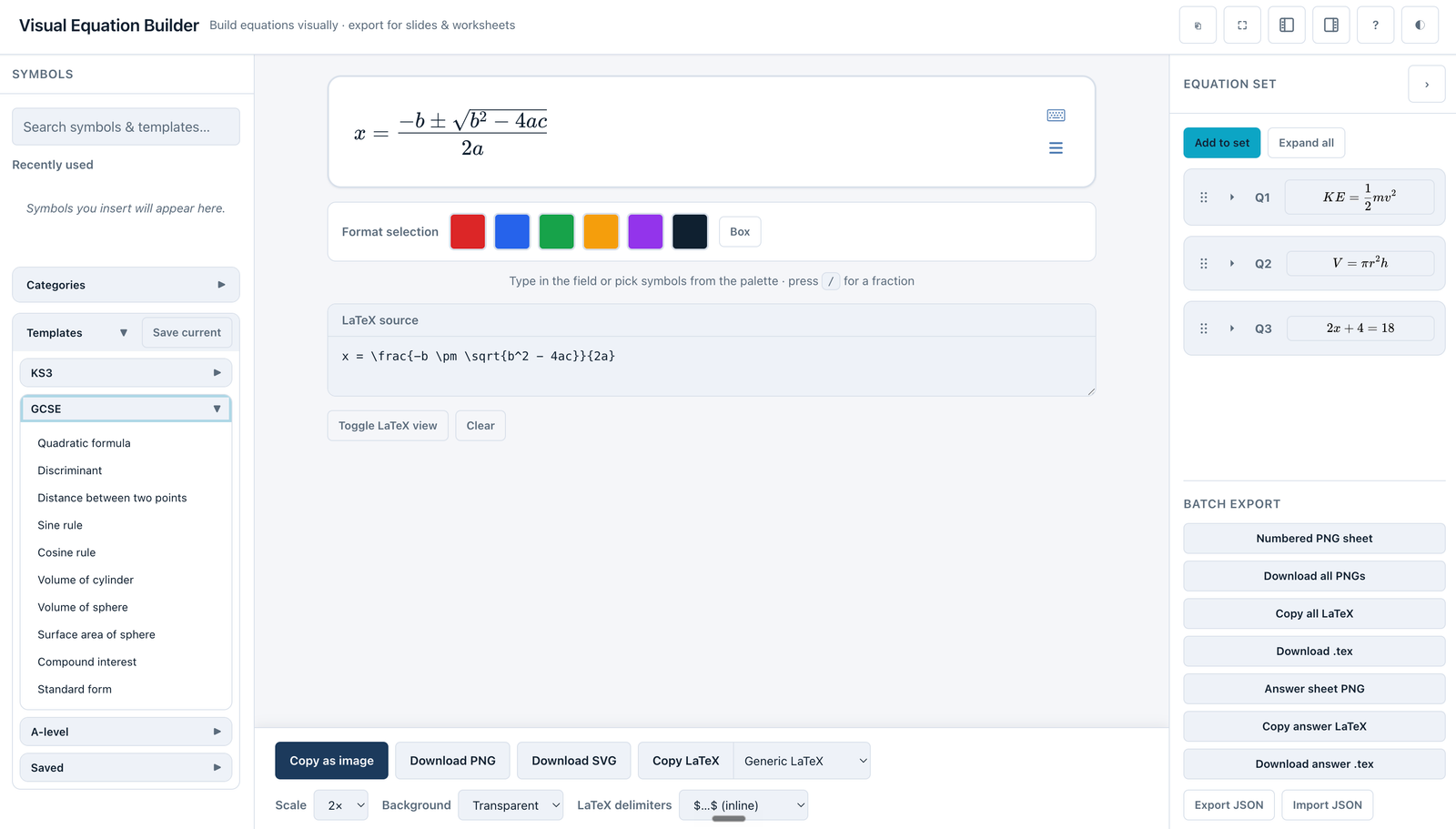
Equation Builder is a what-you-see-is-what-you-get editor that turns typed or palette-built mathematics into clean, reusable artefacts: a PNG or SVG for a slide, LaTeX for a document, a full-screen render for the board, or a numbered worksheet with its own answer key. Equations can be written without requiring any knowledge of LaTeX, by using the virtual keyboard or typing directly.
How the tool works
The workspace has three regions: a searchable symbol palette on the left, the editor canvas in the centre, and an equation set on the right, with an export bar along the bottom of the editor.
- A live maths field. Type in the canvas exactly as you would speak the equation. Pressing
/opens a fraction andTabjumps between the slots of a template, - A categorised symbol palette. Symbols are grouped (Numbers & Operators, Common Variables, Fractions & Powers, Roots & Radicals, Greek Letters, Advanced Functions, Geometry & Vectors, Set Theory & Logic, Statistics & Probability, Number Sets, Calculus & Analysis, Arrows) and fully searchable; a Recently used row keeps your common symbols to hand.
- A LaTeX view. A toggleable strip shows the underlying LaTeX source updating as you build, with inline validation if the syntax breaks.
- A formatting toolbar. Colour any selected part of the equation, or draw a box around it.
- Templates. Starting points grouped by Key Stage (KS3, GCSE, …), plus a Save current button to store your own.
- Export. A single equation can be copied to the clipboard as an image, downloaded as PNG or SVG, or copied as LaTeX tuned for a specific destination. An equation set can be batch-exported as a numbered sheet, individual images, or a
.texfile. - Board mode projects a single equation full-screen, and a share button copies a link that reconstructs the current equation or the whole set.
Getting started
- Type an equation. Try
2x+4=18. Press/for a fraction, or open a symbol from the palette. - Or start from a template. The Templates section of the palette holds common forms grouped by Key Stage; click one to drop it into the editor.
- Add emphasis. Select part of the equation and pick a colour, or press Box, using the format toolbar.
- Export the result. Use Copy as image to paste straight into slides, or Copy LaTeX with the target set to your destination.
- Build a set. Click Add to set to collect the equation as a numbered card, give it an answer, and repeat to assemble a worksheet you can export in one go.
Templates
The Templates section groups ready-made equations by Key Stage (KS3, GCSE, …) so that frequently needed forms, such as the quadratic formula, \(\frac{1}{2}mv^2\), or \(V = \pi r^2 h\), are one click away rather than rebuilt each lesson. Save current stores the equation in the editor as a personal template, which is the fastest way to keep a department's house notation consistent: build the form once, save it, and reuse it across every resource.
Exporting a single equation
The export bar handles one equation at a time and is built around how teachers actually reuse mathematics.
- Copy as image places a PNG on the clipboard, ready to paste into PowerPoint, Google Slides, or a document.
- Download PNG / SVG saves a file; SVG stays crisp at any size, which matters for printed worksheets and large projections.
- Scale (1× to 4×) and Background (transparent or white) control the output. Transparent is the setting that lets an equation sit cleanly on a coloured slide; white suits documents.
- Copy LaTeX copies the source, with a dropdown to retarget it: Generic LaTeX, MS Word equation (for the
Alt+=equation editor), Desmos, or Google Docs equation. For generic LaTeX you can also wrap the output in inline$…$or display$$…$$delimiters.
Example. With the target set to MS Word equation, copying \(\frac{1}{2}mv^2\) produces a form that pastes directly into Word's equation editor, rather than the raw LaTeX Word would reject.
The equation set: a worksheet in the side panel
Clicking Add to set files the current equation as a numbered card (Q1, Q2, …). The numbering is automatic and renumbers itself when cards are reordered by dragging, so inserting a question in the middle does not require relabelling the rest. Each card can be given a custom label instead, or no label at all. Clicking a card's preview loads it back into the editor, where Update item saves your changes to that card and Deselect lets you peel off a variant as a new card. Cards can be duplicated, collapsed, and deleted.
Crucially, each card can carry an answer, entered in its own miniature maths field. A set therefore holds both the questions and their worked answers in one place.
Batch export and answer keys
With a set assembled, the Batch export controls turn it into teaching materials in one action:
- Numbered PNG sheet renders every question as a single labelled image, ready to drop into a worksheet.
- Download all PNGs saves each equation as its own file.
- Copy all LaTeX / Download .tex export the whole set as source.
- Once any card has an answer, Answer sheet PNG and the matching LaTeX exports become available, producing a separate, aligned mark scheme.
Export JSON and Import JSON save a set to a file and reload it later, so a worksheet can be archived, shared with a colleague, or revised next year. (A share link does the same thing through a URL.)
Board mode and sharing
Board mode clears everything away and renders the current equation full-screen for projection or an interactive whiteboard (Ctrl+Shift+B, Esc to exit). On a tablet, tapping the canvas opens a maths keyboard, so an equation can be built live at the board or handed to a pupil. The share button copies a link that reconstructs the equation or the entire set on another device, which is a low-friction way to send a starter to pupils or a worksheet to a colleague.