Geoboard (Mr Barton)
mrbartonmaths.com/geoboard
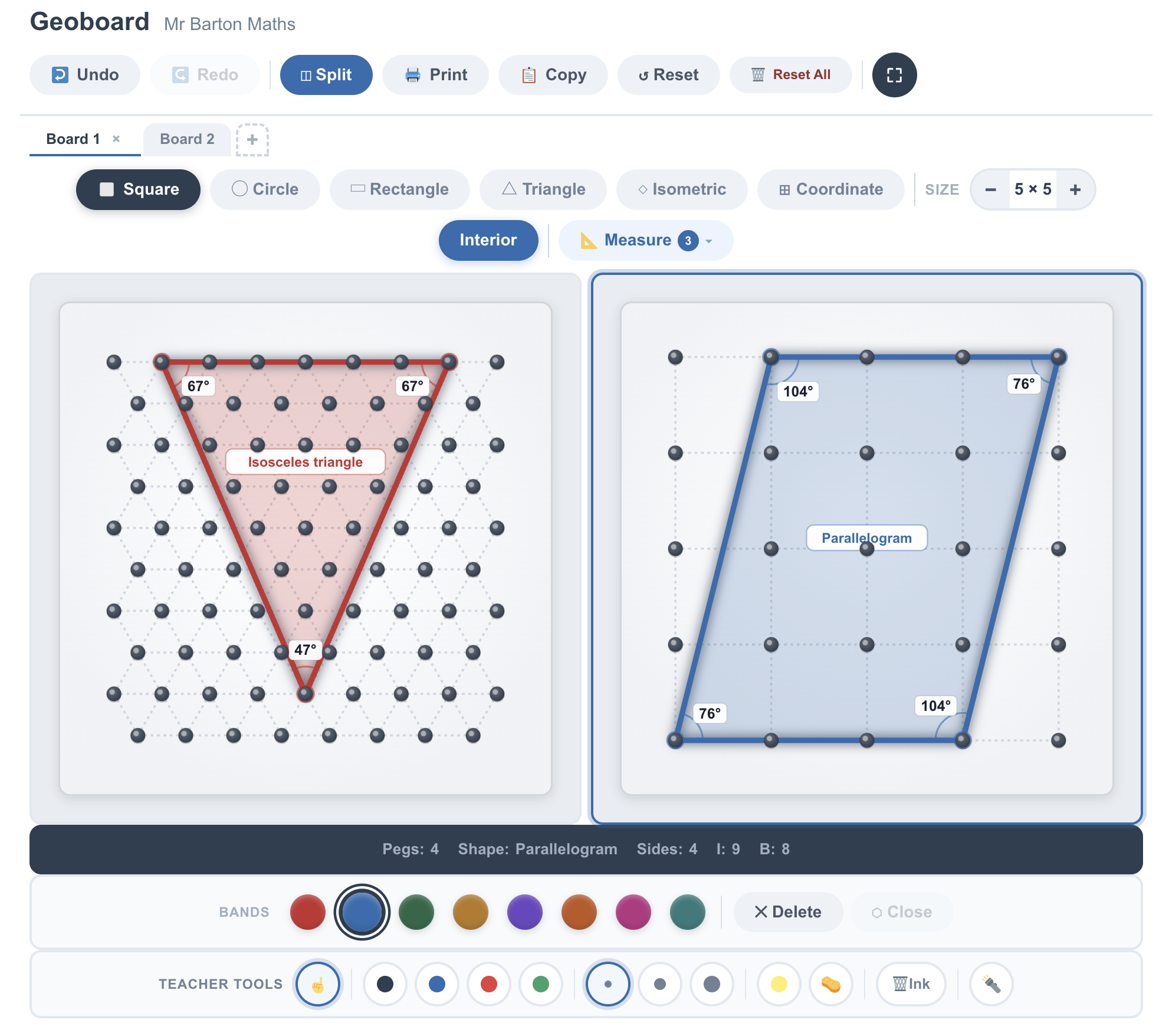
Geoboards are one of the oldest virtual manipulatives, but Mr Barton Maths' Geoboard is probably the best I have seen. A highly sophisticated digital version of the classic physical manipulative, designed for secondary classrooms. It transcends simple shape-making by offering advanced measurement overlays, multiple grid types (including isometric and circular), and a multi-page workspace for comparative investigations.
How the tool works
The interface provides a clean, tactile environment where pupils can construct and analyse geometric figures:
- Dynamic Bands: Click and drag to stretch elastic bands between pegs, using a palette of colours to categorise or distinguish different shapes.
- Multi-Board Environment: Switch between Square, Circle, Isometric, and Coordinate grids to suit the specific curriculum topic or KS3/KS4 learning objective.
- Measurement Overlays: A comprehensive 'Measure' menu toggles real-time data for angles, lengths, area, perimeter, and shape names.
- Teacher Toolset: Includes a split-screen mode for side-by-side comparisons, an ink tool for freehand annotation, and the ability to export or print boards.
Classroom Uses
Discovering Pick's Theorem
The tool simplifies the investigation of the relationship between boundary pegs (\(B\)), interior pegs (\(I\)), and area (\(A\)).
Strategy: Use the Interior (I) and Boundary (B) toggles to highlight relevant pegs. Pupils can record values for various irregular polygons to deduce the formula \(A = I + \frac{B}{2} - 1\).
Confronting Coordinate Misconceptions
Switching to the Coordinate Board allows pupils to explore plotting, distance, and midpoints across four quadrants.
Example: Ask pupils to calculate the distance between points in different quadrants. The tool’s Length overlay provides instant verification of their use of Pythagoras' Theorem or the subtraction of negative coordinates.
Classifying Quadrilaterals and Symmetry
Pupils can use the Shape Name overlay to test their definitions of inclusive properties (e.g., when a rectangle becomes a square).
Strategy: Challenge pupils to create "tilted" shapes whose sides do not follow grid lines. They must use the Angles and Lengths overlays to prove the shape's identity, such as verifying that a tilted rhombus still has four equal sides.
The tool includes a detailed investigations section with prompts for classroom use covering many excellent uses of the Geoboard.
Teaching Strategy
- Define the Goal: Start with a specific investigation, such as "Can you make an equilateral triangle on a square grid?".
- Toggle Tools: Have pupils enable Lengths and Angles from the Measure menu to monitor their construction in real-time.
- Compare Boards: Use the Split feature to place a Square board next to an Isometric board side-by-side.
- Deduce: Ask pupils to explain why the isometric grid makes the equilateral triangle "snap" into place while the square grid requires approximation.
Pedagogical Value
Unlike physical Geoboards, which are fiddly and where rubber bands often snap or limit complex constructions, this digital version allows for infinite precision and instant feedback. It makes "invisible" structures, like the exact angle of a rotation or the hidden pegs of Pick's Theorem, explicitly visible. This helps pupils to move quickly from the "how" of drawing to the "why" of geometric reasoning.