Grid Explorer
sensemake.uk/grid-explorer
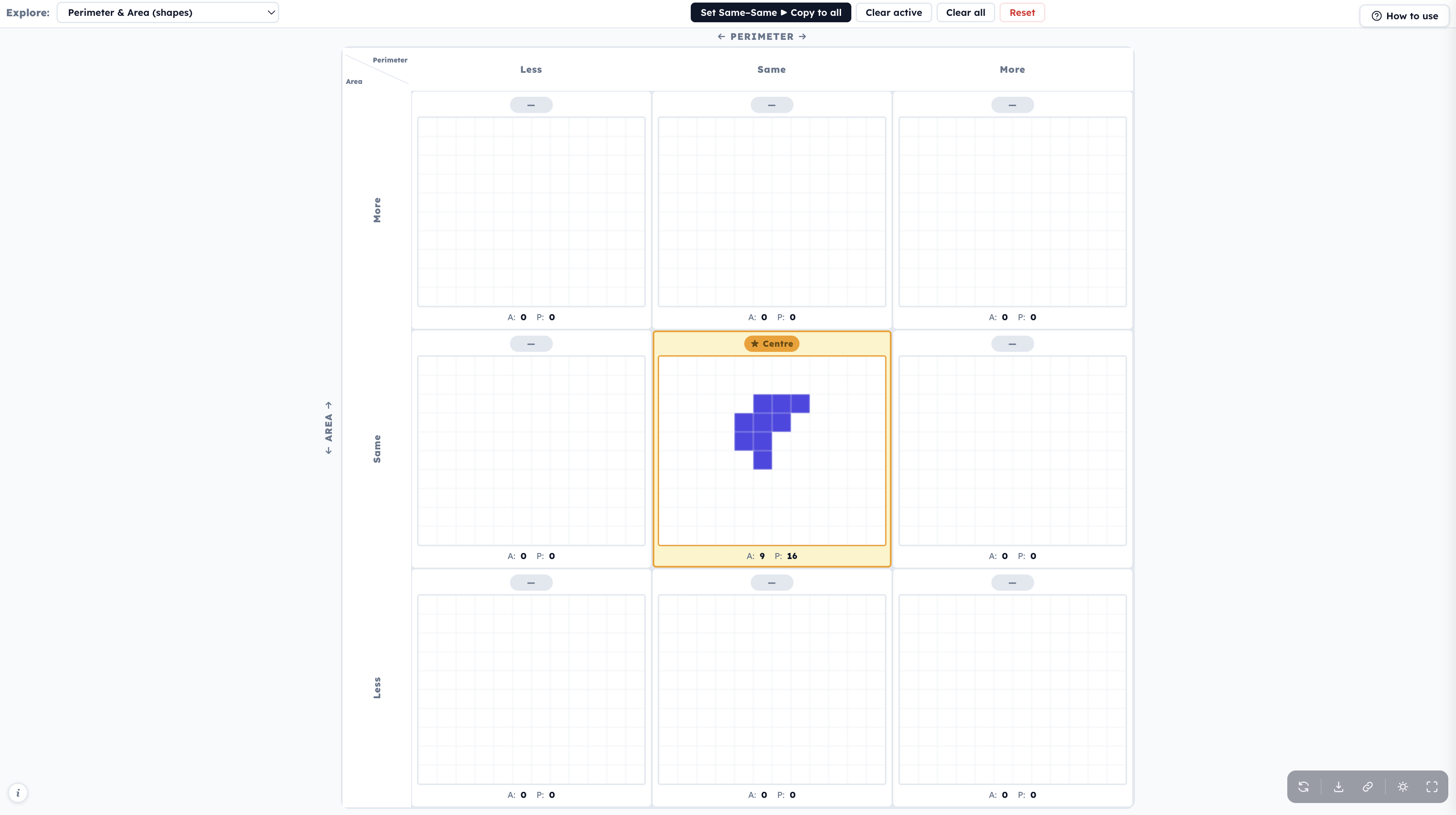
The Maths Grid Explorer is an interactive classroom tool built around a single powerful idea: a 3×3 grid of nine panels, where the centre panel holds a starting example and the surrounding eight panels challenge pupils to find examples that are more, the same, or less in two different mathematical dimensions simultaneously.
The tool has four modes, each targeting a different area of the secondary curriculum:
- Perimeter & Area - draw polyomino shapes on a grid
- LCM & HCF - enter pairs of integers
- Mean & Range - enter sets of numbers
- Factors & Prime Factors - enter a single whole number
In every mode, the structure is the same. The horizontal axis controls one property; the vertical axis controls another. Pupils work to populate each cell with a valid example, getting instant feedback as they go.
How the grid works
The grid is labelled with Less / Same / More (or Smaller / Same / Larger, or Fewer / Same / More, depending on mode) along both axes. The centre cell is highlighted, it holds the reference example that defines what "same" means. The other eight cells each describe a specific combination:
| Smaller | Same | Larger | |
|---|---|---|---|
| Larger | ↑ ↓ | ↑ = | ↑ ↑ |
| Same | = ↓ | ★ Centre | = ↑ |
| Smaller | ↓ ↓ | ↓ = | ↓ ↑ |
(Where ↑ / ↓ / = represent more / less / same compared to the centre, for the vertical axis property and horizontal axis property respectively.)
The magic of the grid is that some cells are easy, and some force pupils to think deeply about the relationship between the two properties.
Getting started
- Select a mode from the dropdown at the top left.
- Set up the centre panel - draw a shape, enter a number pair, or type a set of values.
- Press "Set Same–Same → Copy to all" - this fills all eight surrounding panels with an identical copy of your centre, ready to be modified.
- Work through the grid, changing each panel until the ✓ badge confirms it satisfies that cell's conditions.
The active panel is highlighted with a blue outline. Use Clear active to wipe just the current panel, or Clear all to reset the outer eight without disturbing the centre.
Share links: the tool generates a shareable URL encoding the centre panel's state. This is useful for setting the same starting example for a whole class, or for sharing a particular challenge via a VLE or slide.
Mode 1: Perimeter & Area (shapes)
What it does: Pupils draw shapes by clicking or dragging on a square grid. The tool automatically calculates the perimeter and area of whatever is drawn, displaying both beneath the canvas. The horizontal axis represents perimeter; the vertical axis represents area.
Starting shapes: A built-in shape picker (accessible from the side panel) offers named polyominoes at three difficulty levels. Starter shapes include squares and rectangles; Intermediate includes L-shapes, T-shapes and crosses; Challenge includes more complex shapes like spirals and pinwheels. Teachers can also draw their own directly in the centre panel.
Why this mode is powerful: Many pupils treat perimeter and area as if they are linked. Bigger area means bigger perimeter, and vice versa. The grid directly confronts this. The same area, smaller perimeter cell requires pupils to find a more compact shape; the larger area, same perimeter cell requires them to think about how area can grow without the boundary changing. These are exactly the kinds of insights that stick.
Suggested discussion questions from the tool:
- Which region is hardest to fill? Why?
- What principles emerge for changing area without changing perimeter, or vice versa?
- Are there central shapes for which some regions are impossible?
- What other shapes have the same area and same perimeter as your starting shape?
Mode 2: LCM & HCF (pairs of numbers)
What it does: Pupils enter two integers (1–200) into each panel. The tool computes the LCM and HCF of the pair and displays both. The horizontal axis represents LCM; the vertical axis represents HCF.
What makes it rich: The relationship between LCM and HCF is not immediately obvious to pupils. This mode makes it an object of investigation. For example: can you have a smaller LCM and a smaller HCF simultaneously? What happens when the two numbers are coprime? What if one number is a multiple of the other? The grid turns these into concrete challenges with instant feedback.
Suggested discussion questions from the tool:
- Can you always find a pair for every cell? Which is hardest?
- What relationship must LCM and HCF always have to each other?
- If you double both numbers in the centre, what happens to the LCM and HCF?
- Can you find pairs of numbers where the LCM equals the product of the two numbers?
Mode 3: Mean & Range (sets of numbers)
What it does: Pupils type a comma-separated list of numbers into each panel (sets of 3, 4, 5, or 6 values, selectable in the centre panel). The tool calculates the mean and range and displays both. The horizontal axis represents mean; the vertical axis represents range. The default starting set is 2, 4, 6, 8.
What makes it rich: Mean and range feel independent, and mostly they are, but some combinations are harder to achieve than others. Can you increase the mean without changing the range? (Yes, easily.) Can you increase the range without changing the mean? (Yes, but it requires more thought: add symmetrically.) Can you have a larger range and smaller mean at the same time? The grid turns these abstract questions into concrete tasks with visible results.
Suggested discussion questions from the tool:
- Which cell is hardest to fill? Can you explain why?
- Can you change the mean without changing the range? How?
- Can you change the range without changing the mean? How?
- Is it possible to have a larger range and a smaller mean simultaneously?
Mode 4: Factors & Distinct Prime Factors (single number)
What it does: Pupils enter a single whole number (1–10,000) into each panel. The tool counts the total number of factors and the number of distinct prime factors, displaying both. The horizontal axis represents the number of factors; the vertical axis represents the number of distinct prime factors. The default starting number is 12 (which has 6 factors and 2 distinct prime factors: 2 and 3).
What makes it rich: This mode connects two ideas pupils sometimes treat in isolation, factorising a number and finding its prime factorisation. Some cells generate genuine surprise. Powers of a prime (4, 8, 9, 16, 25…) have many factors but only one distinct prime factor. Can a number ever have more distinct prime factors than total factors? (No: and thinking through why is a valuable exercise.) The top-right cell, more total factors and more distinct prime factors, tends to be the most accessible; the bottom-left tends to be the hardest.
Suggested discussion questions from the tool:
- Which cell is hardest to fill? Can you explain why?
- What types of numbers tend to have many factors but few prime factors?
- Can a number have more distinct prime factors than total factors? Why not?
- What is special about numbers where the count of factors equals the count of prime factors?
Classroom uses
Whole-class investigation: Project the tool on the board. Set the centre together and use Set Same–Same → Copy to all, then work through the grid as a class, inviting pupils to suggest examples and discussing why the badge shows ✓ or ✗.
Paired challenge: Assign different modes or different starting values to different groups. Ask groups to compare grids: do different starting values make some cells harder or easier?
Starter or plenary: The number modes (LCM/HCF, Mean/Range, Factors) work well as 10-minute starters. Give pupils the mode and a starting value and ask them to fill as many cells as they can before discussing.
Homework or extension: Use the share link to send pupils a specific centre value to work from independently, with completed grids used as the basis for a follow-up discussion.
Export: The export button downloads a clean PNG image of the complete grid, including all shapes or values and their ✓/✗ badges, useful for recording pupil work or including in slides and feedback.
Pedagogical roots
The Grid Explorer is based on ideas by John Mason, Anne Watson, Dina Tirosh and Pessia Tsamir. Researchers whose work centres on structured mathematical variation and the use of carefully designed examples to build conceptual understanding. The 3×3 grid structure reflects the principle that understanding a mathematical object means knowing not just one example, but how it sits within a space of related examples. What can change, what must stay the same, and where the boundaries are.