Quadrilateral Explorer
sensemake.uk/quadrilateral-explorer
The Quadrilateral Explorer is an interactive classroom tool for investigating the properties and classification of quadrilaterals. Four labelled vertices, A, B, C, D, sit on a grid and can be dragged freely. As the shape changes, the name updates instantly and a property checklist ticks on and off in real time. The aim is not to present classification as a list to memorise, but to make the logic of it feel inevitable: when all four sides become equal and all angles hit 90°, of course it's a square.
The tool classifies the following shapes:
- Quadrilateral (general)
- (Isosceles) Trapezium
- Parallelogram
- Rectangle
- Rhombus
- Square
- Kite
- Arrowhead (dart)
Classification updates continuously as vertices are dragged, with an inclusive hierarchy available to show how more specific names sit inside more general ones.
How the tool works
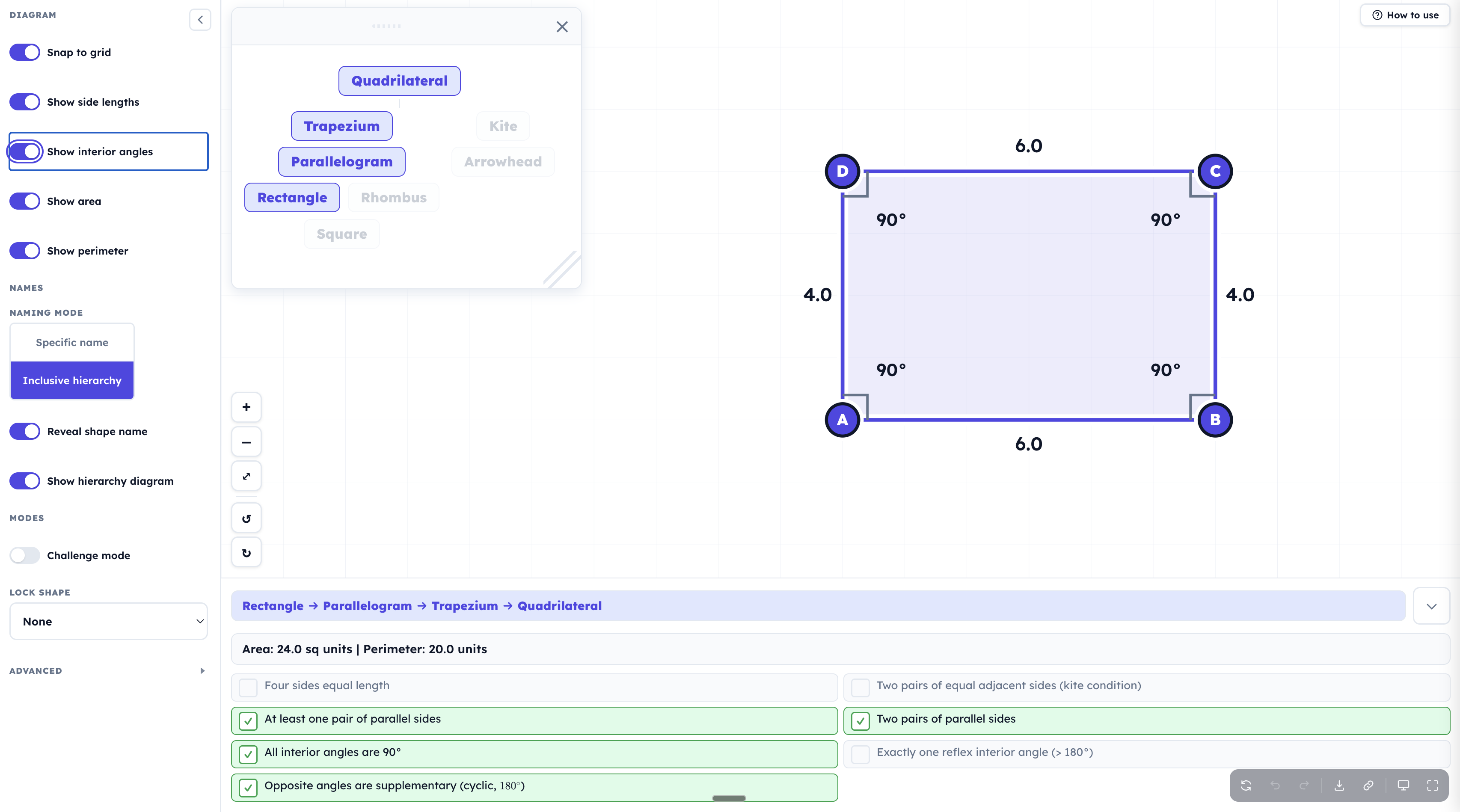
The properties panel that shows the shape name, a seven-item property checklist, and, when enabled, area and perimeter measurements. The panel defaults to the bottom of the canvas but can be moved to the top or right.
Drag vertices A–D to reshape the quadrilateral. Pan by dragging and zoom (buttons or pinch on touch). Rotate buttons step the whole shape in 15° increments.
The property checklist tracks seven properties live:
- Four sides equal length
- Two pairs of equal adjacent sides (kite condition)
- At least one pair of parallel sides
- Two pairs of parallel sides
- All interior angles are 90°
- Exactly one reflex interior angle (> 180°)
- Opposite angles are supplementary (cyclic, \(180°\))
The shape name above the checklist reflects the current configuration in one of two naming modes (see below).
Share links: the Share button generates a URL encoding the current vertex positions, toggle state, and a set of options, including whether to hide the shape name on load and whether to start in challenge mode. Pupils opening the link see the same starting shape but can still drag freely. This is the primary way to set up a specific configuration for a class to explore.
Getting started
- Drag vertices A–D to explore different shapes. The name and checklist update as you drag.
- Switch naming mode between Specific name and Inclusive hierarchy to change how the shape is labelled.
- Toggle Reveal shape name off to hide the label. Useful for asking pupils to classify from properties alone.
- Turn on Show hierarchy diagram to display the floating hierarchy tree, which highlights which nodes the current shape satisfies.
- Use Lock shape to constrain dragging to a chosen class (e.g. Parallelogram), and Challenge mode to present a sequence of construction tasks.
Naming modes
Specific name gives the most precise single label. A shape with four equal sides and four right angles is named Square, not Rhombus or Rectangle. This matches the convention pupils most often encounter in the classroom.
Inclusive hierarchy shows all the names that apply at once. The same square is labelled Square → Rectangle → Parallelogram → Trapezium → Quadrilateral, and the hierarchy diagram highlights every satisfied node. This mode is the more mathematically honest one: it makes the nesting of definitions visible and is particularly powerful for prompting discussion about why every square is also a rectangle.
Both modes pair with Reveal shape name choose whether the shape name is visible. Turn it off and pupils must classify from properties alone before the name is confirmed.
Sidebar controls
Diagram section
- Snap to grid - snaps vertices to the integer grid, making it easier to set up shapes with clean side lengths and angles.
- Show side lengths - displays the length of each side, measured in grid units, alongside the edge.
- Show interior angles - overlays the interior angle at each vertex, with a right-angle square where angles are exactly 90°.
- Show equal length marks - places tick marks on sides of equal length.
- Show parallel line marks - places arrows on parallel side pairs (single for one pair, double for two).
Names section
- Naming mode, Reveal shape name and Show hierarchy diagram
Modes section
- Challenge mode - replaces the property checklist with a sequence of seven construction prompts (see below).
- Lock shape - restricts dragging so the quadrilateral stays within a chosen class. Options: None, Parallelogram, Rectangle, Rhombus, Square, Kite, Trapezium.
Advanced section
- Diagonal geometry - toggles three additional properties related to diagonals
- Show diagonals - draws the two diagonals AC and BD as dashed lines.
- Show diagonal property marks - places tick marks on equal lengths of diagonals (to show bisection) and right angles.
- Show angle bisectors - draws the angle bisector from each vertex.
- Show area / Show perimeter - displays the area (sq units) and perimeter (units) in the panel header.
- Show cyclic property - toggles the cyclic quadrilateral property.
- Show cyclic circle - when the quadrilateral is cyclic (opposite angles sum to 180°), draws the circumscribed circle as a dashed ring. Only appears when the property is actually satisfied.
- Properties panel position - moves the panel to Bottom (default), Top, or Right.
Challenge mode
Challenge mode presents seven prompts in sequence, each asking pupils to construct a specific shape by dragging. A green border confirms success; pupils then move to the next challenge or skip if stuck. The challenges are:
- Make a Kite that is not a Rhombus
- Make a Rectangle that is not a Square
- Make an Arrowhead (dart)
- Make a Trapezium that is not a Parallelogram
- Make a Rhombus that is not a Square
- Make a cyclic quadrilateral that is not a Rectangle
- Make a Parallelogram where no angle is 90°
Pupils can also jump to any challenge directly using the dropdown. Share a link with Start in challenge mode enabled to launch all pupils into the same sequence simultaneously.
Classroom uses
What makes a square a square? Start with a rectangle and ask pupils to drag one vertex until it becomes a square. Ask: which properties in the checklist changed? Which stayed the same? Switch to Inclusive hierarchy to show that the square is still also a rectangle, rhombus, parallelogram, and trapezium. This is one of the most productive discussions the tool supports. The hierarchy makes the structure of definitions concrete rather than abstract.
Classify without names. Turn off Reveal shape name and share the link. Pupils drag to create shapes and describe what they see using only the property checklist, no labels. The task separates property-based reasoning from name recall. Reveal the name when the class is ready to confirm. Pairing this with Think-Pair-Share works well: individuals classify silently, then compare with a partner before the reveal.
Does rotating change a shape? Make a rectangle, then use the rotate buttons to tilt it. Ask: Is this still a rectangle? Pupils see the name and properties stay constant regardless of orientation. Classification depends on properties, not on how a shape is drawn on the page. Try the same with a trapezium: Which side is the "top" now? This directly addresses a common misconception.
Lock and explore. Use Lock shape to fix a class, for example Parallelogram. Pupils drag vertices freely and discover the full range of shapes that satisfy the constraint: squat and wide, tall and narrow, nearly a rectangle, nearly a rhombus. Ask: How many different parallelograms can you make? What always stays the same? This builds the idea that a class of shapes is defined by its invariant properties, not a single prototype.
The cyclic question. Turn on the cyclic circle (Advanced). Challenge pupils to make a parallelogram where the circle appears. They will find it is impossible, unless they drag it into a rectangle. Ask: Why can only some parallelograms be cyclic? This connects the supplementary-angles property on the checklist to a geometric constraint that pupils can see directly.
Hierarchy discussion. With Inclusive hierarchy on, drag a rhombus and ask: what is listed? Now drag it into a square, what new names appear? Now pull it off-square again. This makes the subset relationships between shape families visible without needing a diagram on the board: the floating hierarchy tree is already there, updating live.
Challenge mode as a starter. Turn on challenge mode and share the link with Start in challenge mode enabled. Pupils work through the sequence at their own pace; the green border gives instant feedback. Use the time to circulate and question: How did you know that was a kite? Could it have been a rhombus?
Discussion questions
- Make a shape that is both a Kite and a Rhombus. What is it called? Why must it be that shape?
- Start with a Rectangle. Drag just one vertex to turn it into a Right-Angled Trapezium. Which property did you break first?
- The tool says a Square is also a Parallelogram. Use the property checklist to explain why.
- Create an Arrowhead (dart). What do you notice about its interior angles?
- Turn on the cyclic circle. Can you make a Parallelogram that is not cyclic? What about a Kite that is cyclic?
- Rotate a Trapezium by 90°. Is it still a Trapezium? How can you tell?
Pedagogical roots
The Quadrilateral Explorer is built around the idea that classification understood through variation is more durable than a list of names and definitions. By making every configuration draggable and every property live, the tool draws on the principles of Variation Theory. Understanding what something is requires seeing what it is not, and noticing what changes while essential properties stay the same. The two naming modes reflect the same principle from a different angle: Specific name matches how pupils initially encounter shapes; Inclusive hierarchy reveals the logical structure underneath, making the move from naming to reasoning explicit.