Structured Variation Grids
sensemake.uk/svgrid
SenseMake's Structured Variation Grids is a collection of interactive grids for exploring mathematical structure across Number, Algebra, and Ratio & Proportion. Each grid is built around the same core idea: every cell has two halves, a calculation and a result. Click to reveal them one at a time. By choosing carefully which cells to show and in what order, the teacher controls the pace of discovery. Patterns emerge along rows and columns; the challenge is to explain why they hold.
How the tool works
Every grid is an infinite two-dimensional array. The visible window (adjustable from 2×2 up to 12×12) shows a portion of it; arrow buttons at the edges (or arrow keys on a keyboard) shift the window in any direction, allowing pupils to explore what happens when values cross zero or grow large.
Each cell is split horizontally. Click the top half to reveal the calculation; click the bottom half to reveal the result. Cells stay revealed as you pan, so a pattern built up over several clicks is never lost.
The sidebar provides controls that vary by grid:
- Grid Size - set the number of visible rows and columns.
- Parameters - grid-specific controls such as multipliers, operations, start values, and step sizes. These update the grid in real time.
- Calculations / Results - bulk-toggle buttons that show or hide all calculation or result cells at once. When bulk mode is on, clicking an individual cell hides it again (useful for "all except one" setups).
- Click Mode - switch between Toggle (reveal/hide cells) and Highlight (colour-code cells). Highlight mode is useful for marking patterns without altering what is visible.
- Colour cells - tints revealed calculation cells blue and result cells yellow, making the two halves visually distinct when many cells are shown.
- Labels - shows row and column index labels around the edge of the grid. The meaning of the labels depends on the grid (for example, base and exponent, or common difference and first term).
- Display modes - some grids offer alternative result formats such as Expanded, Result, Compact, Multiplier, or Squares. These let the teacher show the same mathematical relationship from a different angle without switching grid.
Share links: the Share button generates a URL that encodes the current grid, parameter settings, window position, and the exact reveal state of every cell. A colleague or pupil opening the link sees exactly the configuration you set up. Combined with the Export button (which downloads a PNG of the grid), this makes it easy to embed a specific moment into a worksheet or slide.
The How to use panel (accessible from the button in the top-right corner) includes a description of the active grid, a set of discussion questions tailored to that grid, and two suggested classroom strategies.
Getting started
- Choose a grid from the selection screen. Grids are grouped under Number, Algebra, and Ratio & Proportion.
- Click individual cells to reveal calculations and results one at a time. Start with a single row to establish a pattern.
- Adjust parameters in the sidebar to change the grid's focus (for example, changing the multiplier in Distributivity or the operation in Commutativity).
- Use the arrow buttons to shift the window and explore new regions of the grid - particularly across zero.
- Switch display modes (where available) to see the same relationship expressed differently.
The grids
Number
| Grid | What it shows | Key features |
|---|---|---|
| Multiplication Table | Products of integers, \(r \times c\) | Shift the window past zero to explore negative × negative. |
| Addition & Subtraction | Sums or differences of integers | Toggle between + and −; shift past zero. |
| Commutativity | \(a \circ b\) alongside \(b \circ a\) for +, −, ×, ÷ | Compare a ○ b with b ○ a. Which operations are Commutative? When does order matter? |
| Simplifying Fractions | \(\frac{r}{c}\) and its simplified form | Each cell shows a fraction. Can you predict when it simplifies? Patterns in which fractions simplify connect to factors and HCF. |
| Powers & Indices | \(r^c\) for integer base and exponent | Shift left for negative exponents (fractional results). |
| Multiplying Fractions | A fixed fraction times \(\frac{c}{r}\) | Change the fixed numerator and denominator; toggle between × and ÷. |
| Altered Products | \(c(c + r) + (r - 1)\) shown alongside \((c+1)(c + r - 1)\) | Multiply two numbers, add a constant, and get another product. What is the relationship between calculation and result? |
| Distributivity | \(a \times n\) partitioned as \(a \times p + a \times q\) | Free, Fixed, and Subtract partition modes; Commute toggle; Expanded and Result display modes. |
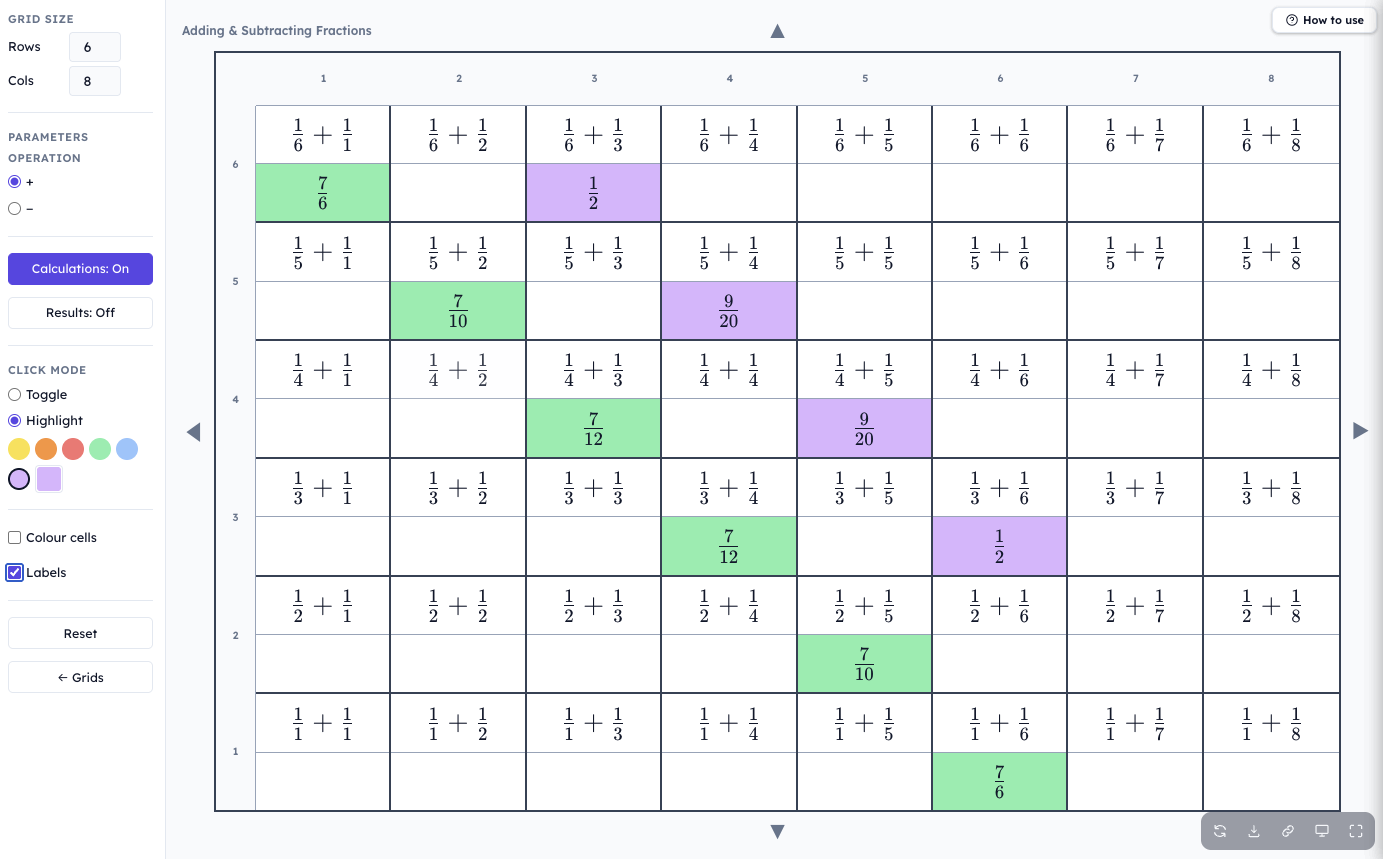
| Adding & Subtracting Fractions | \(\frac{1}{r} + \frac{1}{c}\) (or −) and the simplified result | Toggle + / −. The diagonal reveals a clear pattern; labels help pupils see which denominators give unit-fraction results. |
| Gattegno Tens Chart | A place-value chart where each row is a power of 10 | Power notation (\(c \times 10^n\)) or full-number mode; standard form toggle; fractions-or-decimals toggle for negative powers; configurable standard-form digit threshold. |
Algebra
| Grid | What it shows | Key features |
|---|---|---|
| Expanding Binomials | \((x + a)(x + b)\) and the expanded quadratic | Configurable start values and step sizes for \(a\) and \(b\). |
| Four-Fold Products | Product of four terms in arithmetic progression, plus \(d^4\) | Results are always perfect squares. |
| Shared Constant Brackets | Two binomials sharing a constant term \(c\) | Sign toggles on each bracket; Compact mode simplifies the middle term. Connects to factorising quadratics. |
| Evaluating Expressions | Substitute \(x\) into families of expressions | Choose Linear, Powers, All, or Custom column groups. Arrow keys shift \(x\), \(a\), \(b\), or \(n\). Highlights which expressions are equivalent. |
| Expanding Single Brackets | \(a(bx + c)\) expanded | Change the constant \(c\); toggle explicit display of coefficients 0 and ±1. |
| Expanding & Factorising Binomials | Four sign combinations of \((x \pm a)(x \pm b)\) in fixed columns | Columns show (+a)(+b), (+a)(−b), (−a)(+b), (−a)(−b). Change \(a\) with the arrows; toggle factor order and \(x\) position. |
| Linear Sequences | First terms of an arithmetic sequence and the \(n\)th-term formula | Row = common difference \(d\), column = first term \(a\). Toggle explicit display of 0 and ±1 coefficients. |
Ratio & Proportion
| Grid | What it shows | Key features |
|---|---|---|
| Percentage Increase & Decrease | Amount ± percentage and the resulting value | Toggle increase/decrease; configurable amount and percentage steps. Multiplier mode shows the decimal multiplier for each percentage. |
Classroom uses
Reveal-and-predict (going with the grain): Show the calculation cells of a row one at a time from left to right. After two or three, ask pupils to predict the next. Then reveal the result cells the same way. Finally show whole cells and ask: why must the top and bottom always be equal? This "with the grain" approach follows the variation along a row or column, building fluency with the pattern before asking for explanation.
Compare across the grain: Show a full column of cells and ask what is the same and what is different about the calculation expressions. Then ask how the results relate. This "across the grain" approach foregrounds the structural relationship between calculation and result.
Shift the window: Set up a pattern in positive territory, then shift the window so that zero appears in a row or column header. Ask pupils to predict what happens. This is particularly powerful in Multiplication Table (negative × negative), Powers & Indices (zero and negative exponents), and Addition & Subtraction (subtracting a negative).
Highlight to annotate: Switch to Highlight mode and colour-code cells that share a property, for instance, all cells in Simplifying Fractions where the result is a unit fraction, or all cells in Expanding Binomials where the constant term is negative. The colours persist as you continue revealing cells, so the annotation layer builds alongside the mathematical content.
Share a starting configuration: Use the Share button to generate a link with specific cells pre-revealed. Pupils open the link and continue from that point, either individually or in pairs.
Discussion questions: Every grid has its own set of discussion questions, accessible from the How to use panel. These are designed to prompt noticing, predicting, and generalising. For example, What patterns do you notice going along a row?, Can you predict the next cell before revealing it?, and What happens when you shift the window past zero?
Pedagogical roots
Structured Variation Grids draw on the tradition of grid-based tasks developed by John Mason and Anne Watson, in which carefully structured numerical or algebraic arrays invite learners to notice, conjecture, and generalise. The two-layer cell design (calculation above, result below) reflects their distinction between going with the grain, following a pattern along a row or column, and going across the grain, explaining the relationship between the two halves of each cell. By controlling which cells are visible, the teacher can orchestrate a sequence of revelations that moves from specific cases to general structure, making the grid a tool for guided discovery rather than passive display.